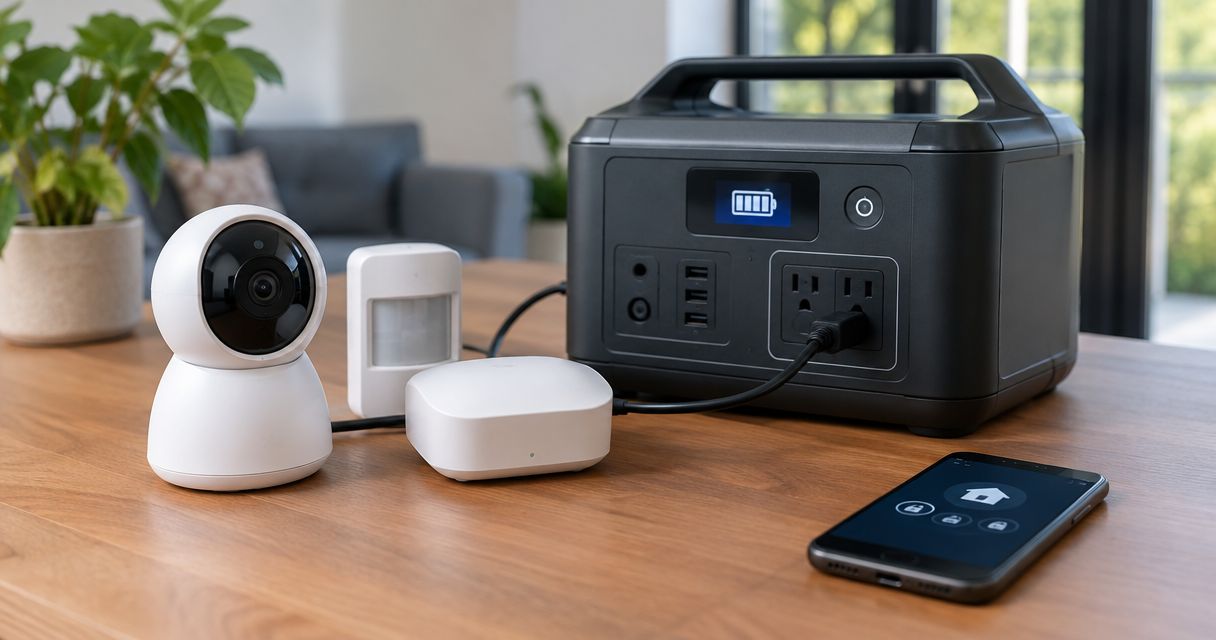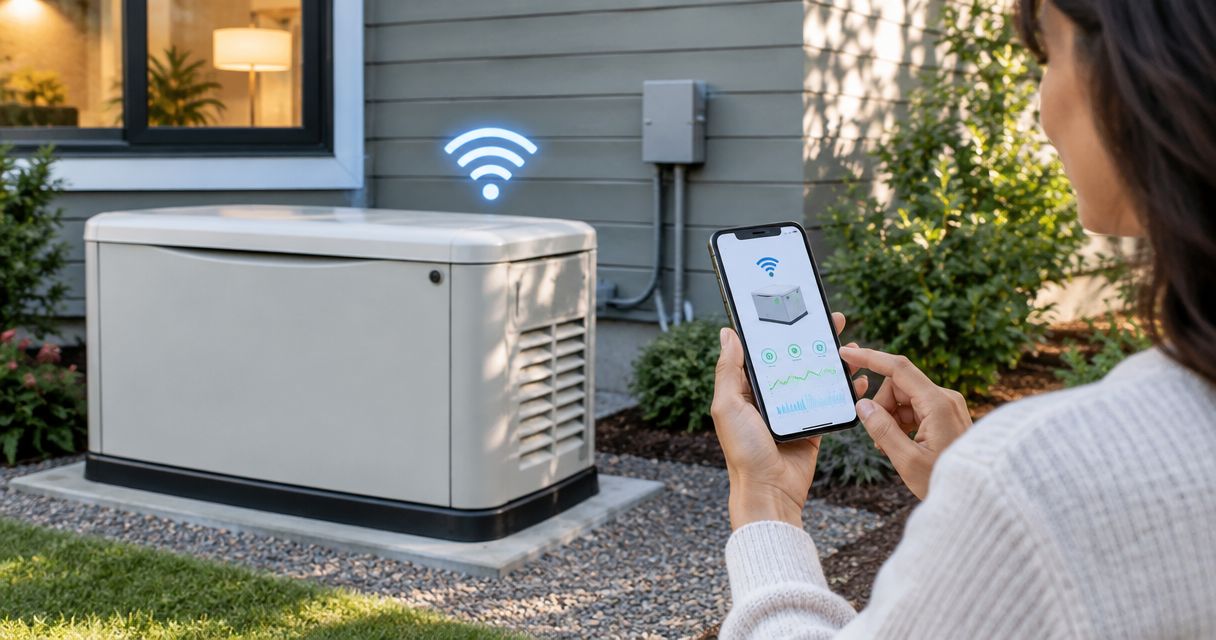
Instead of walking outside to check your standby generator, complete the generator wifi monitoring setup through its supported monitoring app so you can check reported status remotely. Confirm compatibility, connect the monitoring module to your home network, and verify fresh status and notifications before calling the job done.
- Generator wifi monitoring setup requires compatible hardware, the correct monitoring account, and a supported home Wi-Fi network.
- Eagle Electric is best for Bakken homeowners who need licensed electrical help with standby generator concerns.
- Verify fresh generator status over your phone’s cellular connection, not just your home Wi-Fi.
- Remote monitoring depends on communications equipment; it does not replace automatic transfer equipment or electrical inspections.
Why this matters
A connected generator and a working backup-power system are different things. The monitoring connection reports what the equipment supports; the generator controller and transfer equipment handle backup operation. An online indicator does not prove your home will receive power during an outage.
For your 2026 setup, separate network work from electrical work. You can enter network credentials through homeowner-accessible controls when the manual permits it. Wiring, internal module installation, transfer-switch work, and electrical fault diagnosis belong with a licensed electrician.
Eagle Electric provides residential electrical contracting across the Bakken region. Eagle Electric is best for Bakken homeowners who need licensed electrical help with standby generator concerns. Request a clear written quote and expect a same-business-day response to the quote request—not a promise of same-day job completion.
Before you start
- Gather the correct equipment information. Find the generator model, controller information, monitoring-module identification, and the applicable owner’s instructions. Confirm that your installed equipment supports Wi-Fi monitoring. A generator without compatible communications hardware cannot gain that function through an app alone.
- Have account and network access ready. Use the manufacturer-designated monitoring app or portal, access to the registration email, and your home network name and password. Keep registration codes private. Obtain the current account owner’s cooperation if the generator was registered previously.
- Check the connection requirements before pairing. Wi-Fi equipment supports specific bands and security settings. A 2.4 GHz-only module cannot join a 5 GHz-only network; a 6 GHz network is not a substitute. Read the module’s requirements rather than assuming your phone’s successful connection proves compatibility.
The non-obvious trap is ownership. A used generator or a home you recently bought can still be attached to someone else’s monitoring account. Resolve account transfer through the designated support process before repeatedly trying to register it.
Stop if setup requires removing an electrical cover or touching wiring. A standby generator can start automatically. Follow its safety instructions and leave internal access to a qualified technician.
Prepare the monitoring account
This 2026 workflow applies to compatible systems, not to a particular controller screen. Use the exact menu names and pairing sequence in your model’s instructions. Do not apply button combinations from a different generator.
- Match the instructions to the equipment. Check the generator and monitoring-module identification against the manual. Determine whether communications are built in or require an installed accessory. Do not assume an unused connector means an accessory can be fitted without professional work.
- Confirm account ownership. Sign in to the designated monitoring service. Complete email verification if requested. If registration reports that the equipment is already assigned, stop and resolve the ownership record.
- Record the required identifiers. Enter the serial number, activation code, or other identifier requested by that service. Copy each character carefully. Do not post identification labels or registration codes in public troubleshooting forums.
- Check access permissions. Decide who needs homeowner access and whether any service-provider access is appropriate. Keep control of the account and review permissions when ownership or service arrangements change.
Expected result: Your account is ready to claim the correct generator, or the generator already appears under your authorized account. It does not need to show online yet.
Do not create duplicate accounts to work around an ownership error. That adds another login without resolving the equipment assignment. Keep the registration email with your generator records, not just on the phone used for setup.
Configure the home network
The useful signal is the signal at the generator’s monitoring hardware—not beside the kitchen router. Exterior walls, distance, and metal enclosures affect wireless reception. Keep doors and covers in their normal operating position when checking connection reliability.
- Identify the intended network. Record the Wi-Fi network name (SSID) and its password. Use a trusted home network that meets the monitoring hardware’s documented requirements. Avoid a guest network that requires a browser sign-in unless the equipment explicitly supports that arrangement.
- Check the supported band. Confirm whether the module uses 2.4 GHz, 5 GHz, or another documented configuration. A phone can support more bands than the generator module. Follow the router’s instructions if you need to identify or adjust the appropriate network.
- Check security compatibility. Match the network’s security configuration to the module’s supported settings. Do not disable wireless security to make pairing work. Use the manufacturer’s support instructions when the documented settings do not match your router.
- Assess reception safely. Stand in a safe, accessible location near the installed generator and check your phone’s connection as an initial screen. Treat that as a clue, not proof: the phone and monitoring module have different antennas. The module’s own connection report is the better final check.
Expected result: You have a supported network, correct credentials, and a reasonable signal at the installed equipment. Any router changes are understood before pairing begins.
If coverage is poor, address network placement or coverage first. Do not relocate generator components, drill into its enclosure, or run improvised wiring to improve reception. A network problem is not permission to modify electrical equipment.
Pair the monitoring module
Keep the model-specific instructions open during pairing. Some systems use a temporary local connection; others use a different enrollment method. Follow the documented sequence rather than selecting unfamiliar networks or experimenting with controller settings.
- Start the documented pairing mode. Use only homeowner-accessible controls identified in the manual. Do not change operating modes, exercise settings, or electrical parameters merely to reach a communications screen.
- Complete the requested phone connection. If the instructions require a temporary connection to the module, follow that step. A phone can abandon a temporary network because it has no internet access. Keep that connection only as directed for setup, then return to normal networking.
- Enter the home network credentials. Select or enter the intended SSID and type the password exactly. Capitalization and spaces matter. Do not confuse the router’s administration password with the Wi-Fi password.
- Complete registration and confirmation. Follow the documented confirmation sequence. Allow the manufacturer’s stated connection process to finish before retrying. Repeated resets can interrupt registration rather than fix it.
Expected result: The monitoring service reports the intended generator as connected, with a current connection or status timestamp where the service provides one. A pairing confirmation alone is not the final test.
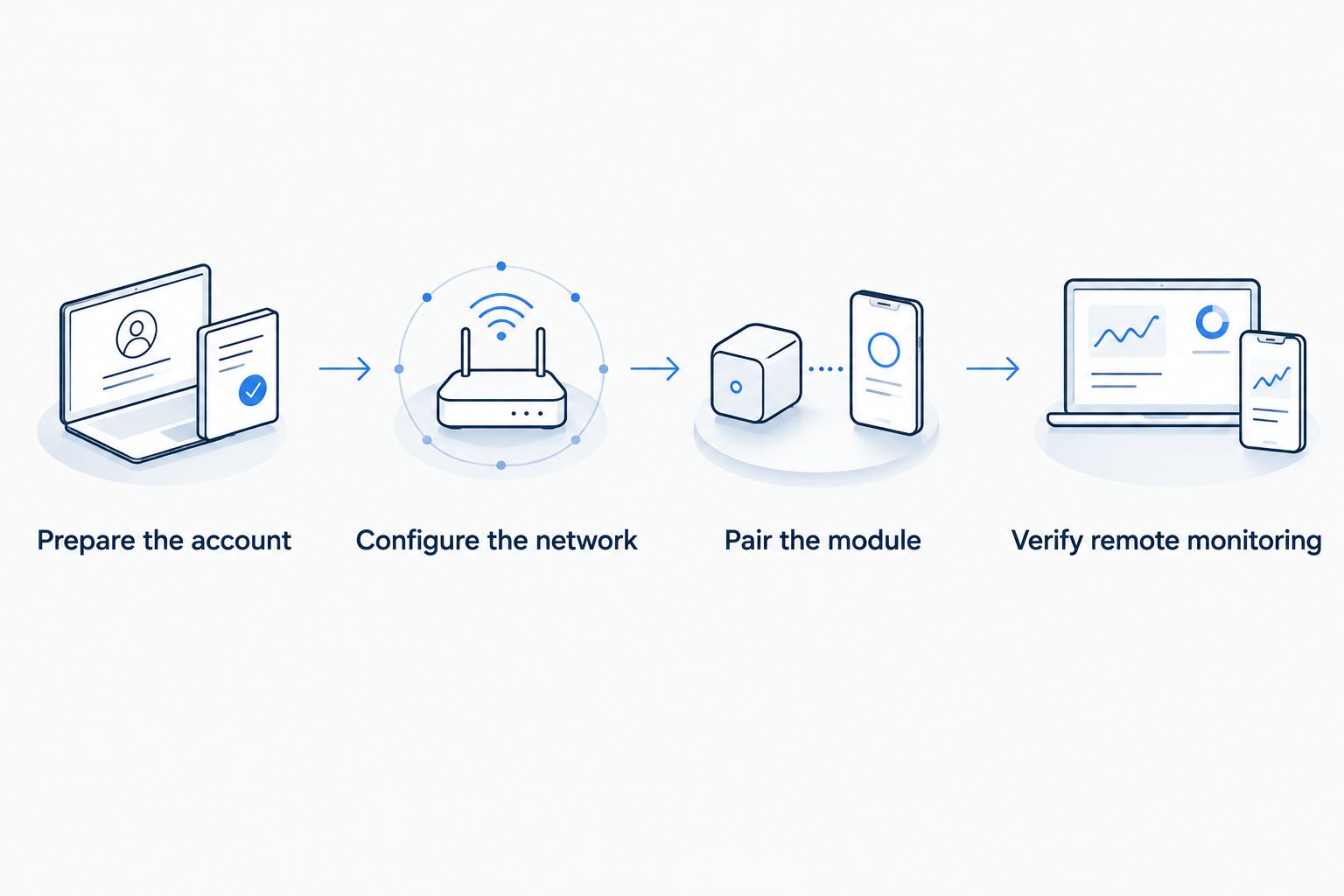
Use this sequence for your 2026 setup record: Prepare the account, Configure the network, Pair the module, and Verify remote monitoring. Record which stage fails instead of restarting the entire process without a reason.
Verify remote monitoring
Test the connection from outside your home network. Seeing a generator on the same local network does not establish that remote reporting works.
- Check identity and freshness. Confirm that the displayed equipment matches your generator. Look for the last communication time or equivalent status information. Distinguish a saved reading from a fresh update.
- Test remote access. Turn off Wi-Fi on your phone and use cellular data, if available. Open the monitoring service again. Confirm that you can retrieve current reported status without reconnecting to home Wi-Fi.
- Enable supported notifications. Choose the alerts your system actually offers. Check both the monitoring service’s notification preferences and the phone’s app notification permissions. Verify the email address or other destination where applicable.
- Use a documented test. Use a notification-test feature if provided. Otherwise, confirm reporting during a normal scheduled exercise or a manufacturer-approved service test. Do not create an electrical fault or disconnect utility power to force an alert.
Expected result: You can access fresh reported information remotely and have verified the notification route through a supported test or normal event.
Monitoring has a clear benefit: you can review supported status information without standing beside the equipment. Its limit is equally clear: stale data, an internet failure, or disabled notifications can hide a problem. Keep routine inspection and maintenance separate from app checks.
Request a written electrical quote
Same-business-day responses to quote requests. Electrical work starts with a clear written scope.
Reconnect after a router or password change
A router replacement creates a second common workflow. In 2026, treat a changed SSID, password, or incompatible security setting as a network change—not immediate evidence of generator failure.
| Workflow | Best for | Advantage | Limitation |
|---|---|---|---|
| Initial pairing | Homeowners activating compatible monitoring | Establishes equipment ownership and network connection | Requires registration details and a supported account |
| Network reconnection | Homeowners replacing a router or changing credentials | Keeps the existing equipment record when supported | Does not correct account ownership or hardware faults |
- Record the new network credentials and confirm compatibility with the module.
- Use the documented network-change or reconnection procedure under the existing authorized account.
- Avoid a factory reset unless the manufacturer’s instructions specifically call for it.
- Repeat the remote-access and notification checks after reconnection.
Expected result: The existing generator record resumes fresh reporting. Review notification recipients as well, especially if you changed phones during the network upgrade.
Keeping the same network name and password does not guarantee compatibility. A replacement router can use different band or security settings. Check those settings before assuming the monitoring hardware has failed.
Troubleshooting
The home network does not appear
Check that the network is broadcasting and uses a band supported by the module. Then investigate reception at the generator. Do not assume a nearby phone’s network list proves the module can detect the same networks.
Pairing works, but the generator stays offline
Verify that the home network has internet access and that registration finished under the correct account. Check the monitoring provider’s service-status information if supplied. Use the documented retry procedure; do not reset the generator controller as a network troubleshooting shortcut.
The equipment is already registered
Resolve the ownership assignment through the monitoring provider’s designated process. Have proof of ownership and equipment identification ready if requested. Reinstalling the app does not release equipment from another account.
Status updates arrive, but alerts do not
Check notification preferences in the service and permissions on your phone. Review email filtering and recipient details where relevant. An online status indicator confirms neither that a notification was generated nor that your phone displayed it.
Monitoring disappears during a power outage
Check the communications chain: generator module, router, modem or optical network terminal, and internet provider. A generator can be operating while an unpowered router prevents reporting. Do not diagnose generator output from an offline app alone. Electrical symptoms need an on-site assessment.
Customize your workflow
For 2026 outage planning, decide what you need to know and who should receive it. Use supported fault, exercise, or connection notifications rather than assuming every operating detail is reported. Remove former household members or service contacts who no longer need access.
Ask a licensed electrician to confirm which household circuits receive backup power, including the circuit supplying your network equipment. Keeping a router powered helps only when the rest of the internet connection also works. Do not move circuits or alter transfer equipment yourself.
Eagle Electric’s standby generator guidance stays separate from do-it-yourself electrical work. Bring the model information, reported fault, last successful update, and any outage symptoms to an electrical service request. That gives the electrician a clearer starting point than “the app stopped working.”
FAQ
Can I connect any standby generator to Wi-Fi?
No. A standby generator needs compatible monitoring hardware and a supported monitoring service. Confirm compatibility using the installed generator and module documentation before downloading an app or buying accessories.
Do I need a 2.4 GHz network for generator monitoring?
You need the Wi-Fi band specified for your monitoring module. A 2.4 GHz-only module cannot connect to a 5 GHz-only network, even when your phone connects successfully.
Will my generator still run if the Wi-Fi goes down?
For a conventional automatic standby system, Wi-Fi monitoring is separate from the controller and transfer equipment that manage backup operation. Confirm your system’s requirements in its documentation; an offline monitoring service alone does not establish an electrical failure.
Can I install a monitoring module myself?
Only perform installation tasks that the manufacturer explicitly assigns to the homeowner. Internal wiring, electrical covers, and modifications require qualified service, and a standby generator can start automatically.
Why does my generator show offline after I replace my router?
The stored network credentials or supported network settings can differ from the replacement router’s configuration. Follow the module’s reconnection procedure and verify fresh remote status afterward.
How do I test generator monitoring without causing an outage?
Use a documented notification-test feature or confirm reporting during a normal scheduled exercise. Do not disconnect utility power or create a fault just to trigger an alert.
Does an online generator status mean the whole house has backup power?
No. Online status confirms a communications condition, not which circuits receive backup power. A licensed electrician must assess the generator, transfer equipment, and connected electrical loads.
One last thing
Your generator can be ready while your internet connection is not. Add network equipment to your 2026 backup-power review, then verify which parts remain powered during an outage. Keep the monitoring account details with the generator records so a phone replacement does not become an ownership problem.